Frontend Configuration
Note: These configurations are currently managed by Advance Intelligence (AAI).
This document describes the structure and usage of the system configuration file. The configuration uses a modular JSON format, allowing flexible extension and merging.The configuration includes the following three main modules:
Theme Configuration: Controls the visual style of the system
Language Configuration: Used for multilingual content
Feature Configuration: Used to toggle system feature modules
1. Theme Configuration
Description
The theme supports two modes: light (light mode) and dark (dark mode), and both can coexist.They share the same configuration structure, and support the following fields:
xxxxxxxxxx{ // Color palette for the entire theme system "colors": { "primary": "#F8A800", // Yellow brand color "text": { "primary": "#333333" // Main text color }, "background": { "primary": "#FFFFF", // Main background color "secondary": "#F8F8F8" // Secondary background color } }, // Typography settings "typography": { "fontWeights": { "medium": 500, // Medium weight "bold": 700 // Bold weight }, "fontSize": { "xs": "12px", "sm": "14px", "md": "16px", "lg": "18px", "xl": "24px" } }, // Component-specific styles "components": { "buttons": { "color": "#000", "background": "#f8a800" } }, // Asset paths "assets": { "icons": { "camera": "${cameraLightIconUrl}", "warning": "${warningLightIconUrl}", "disconnect": "${disconnectLightIconUrl}", "documentTimeout": "${documentTimeoutPromptLightUrl}", "documentGuide": "${guideLightUrl}", "fallbackTip": "${fallbackTipSvg}", "cameraPermission": "${cameraPermissionSvg}" } } }Users are free to choose which fields to configure in each mode — there is no requirement to provide all fields. Any field left unconfigured will fall back to a default value
Default Configuration
The following lists all supported configuration fields. If the user does not provide any configuration, the system will use the following default settings by default.
xxxxxxxxxx{ "loading": "dual_ball", "light": { "colors": { "primary": "#F8A800", "text": { "primary": "#333333" }, "background": { "primary": "#FFFFF", "secondary": "#F8F8F8" } }, "typography": { "fontWeights": { "medium": 500, "bold": 700 }, "fontSize": { "xs": "12px", "sm": "14px", "md": "16px", "lg": "18px", "xl": "24px" } }, "components": { "buttons": { "color": "#000", "background": "#f8a800" } }, "assets": { "icons": { "camera": "${cameraLightIconUrl}", "warning": "${warningLightIconUrl}", "disconnect": "${disconnectLightIconUrl}", "documentTimeout": "${documentTimeoutPromptLightUrl}", "documentGuide": "${guideLightUrl}", "fallbackTip": "${fallbackTipSvg}", "cameraPermission": "${cameraPermissionSvg}" } } }, "dark":{ "colors": { "primary": "#ff2c55", "text": { "primary": "#fff" }, "background": { "primary": "#000", "secondary": "#333" } }, "typography": { "fontWeights": { "medium": 500, "bold": 700 }, "fontSize": { "xs": "12px", "sm": "14px", "md": "16px", "lg": "18px", "xl": "24px" } }, "components": { "buttons": { "color": "#fff", "background": "#ff2c55" } }, "assets": { "icons": { "camera": "cameraDarkIconUrl", "warning": "warnDarkIconUrl", "disconnect": "disconnectDarkIconUrl", "documentTimeout": "documentTimeoutPromptDarkUrl", "documentGuide": "guideDarkUrl", "fallbackTip": "fallbackTipDarkSvg", "cameraPermission": "cameraPermissionSvg" } }}}Configuration Example
For example, if you want to modify the text color and button background color in the light theme, you can use the following JSON configuration.
xxxxxxxxxx{ "light": { "colors": { "primary": "#00B894" }, "components": { "buttons": { "background": "#00B894" } } }}2. Language Configuration
Description
Fields can be defined as needed and will be automatically merged. There is no need to redefine default values.
Default Language Configuration
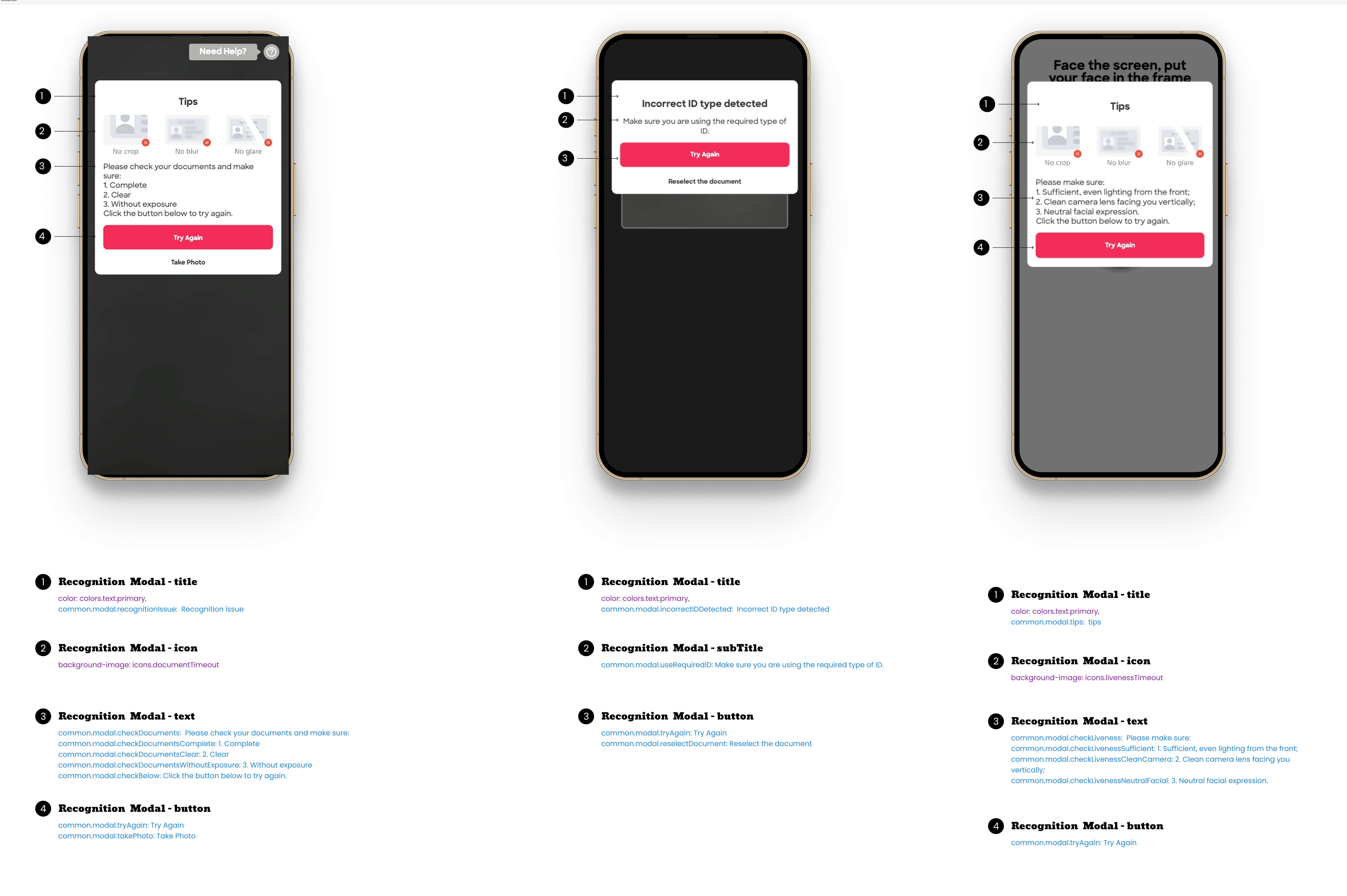
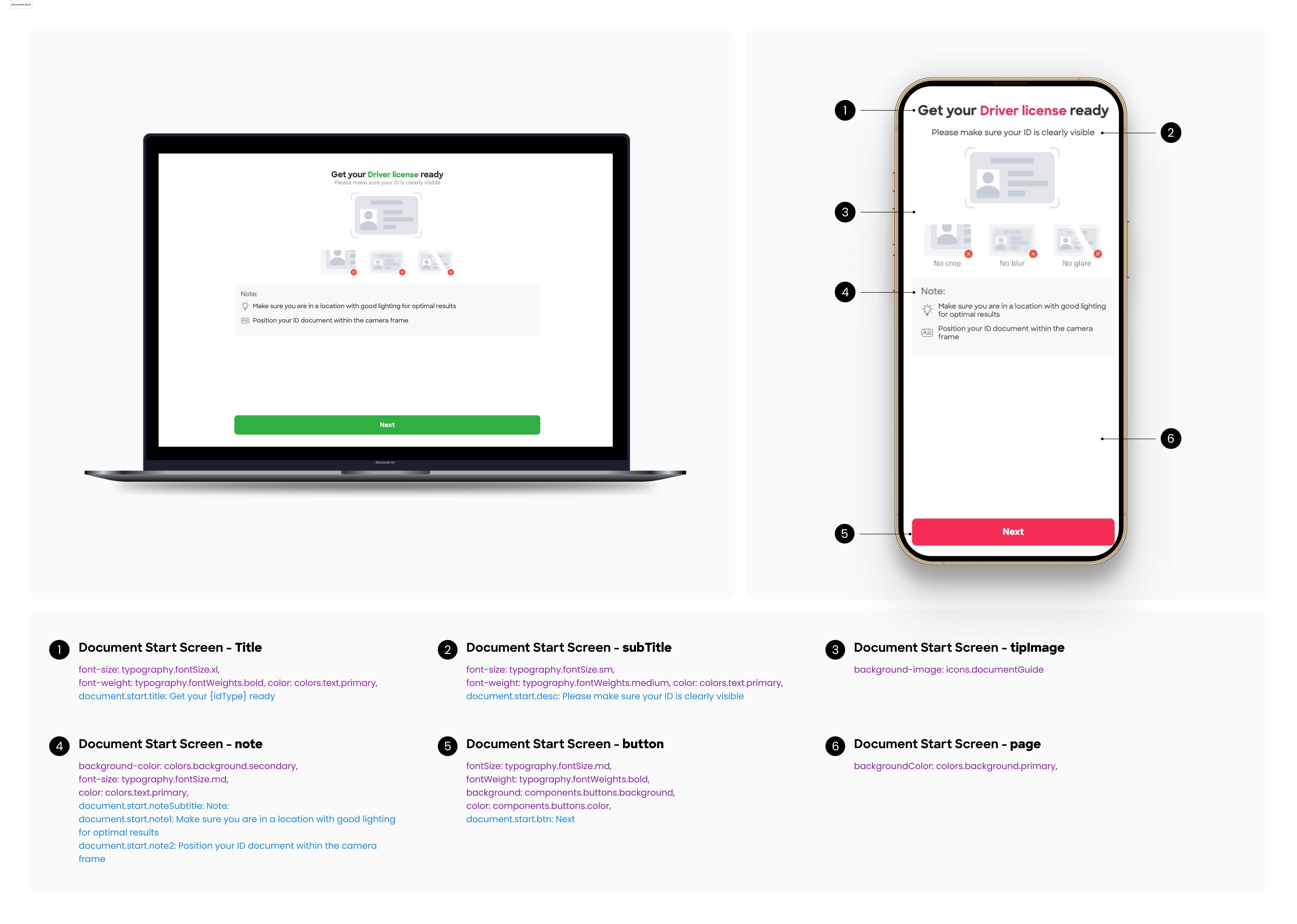
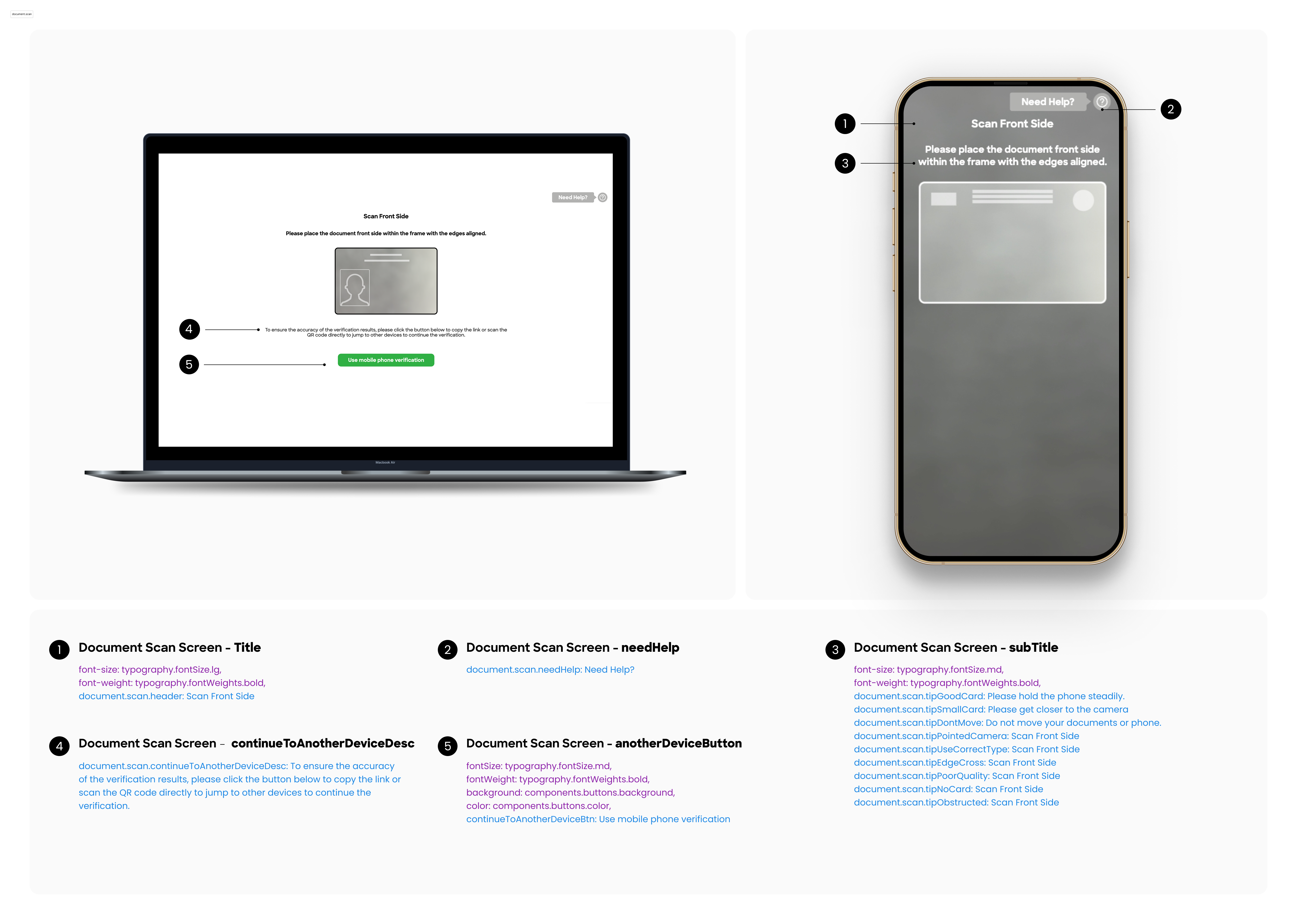
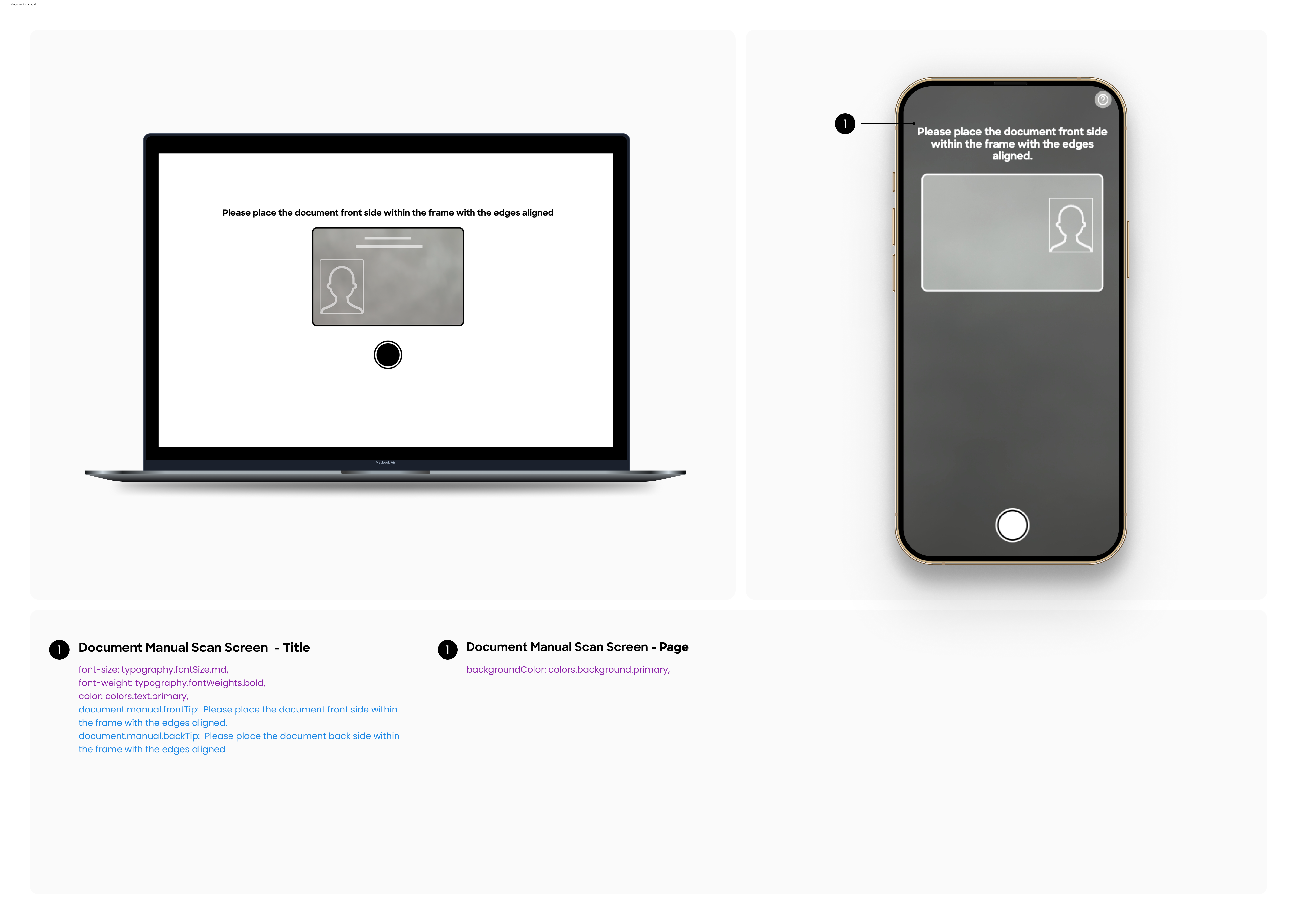
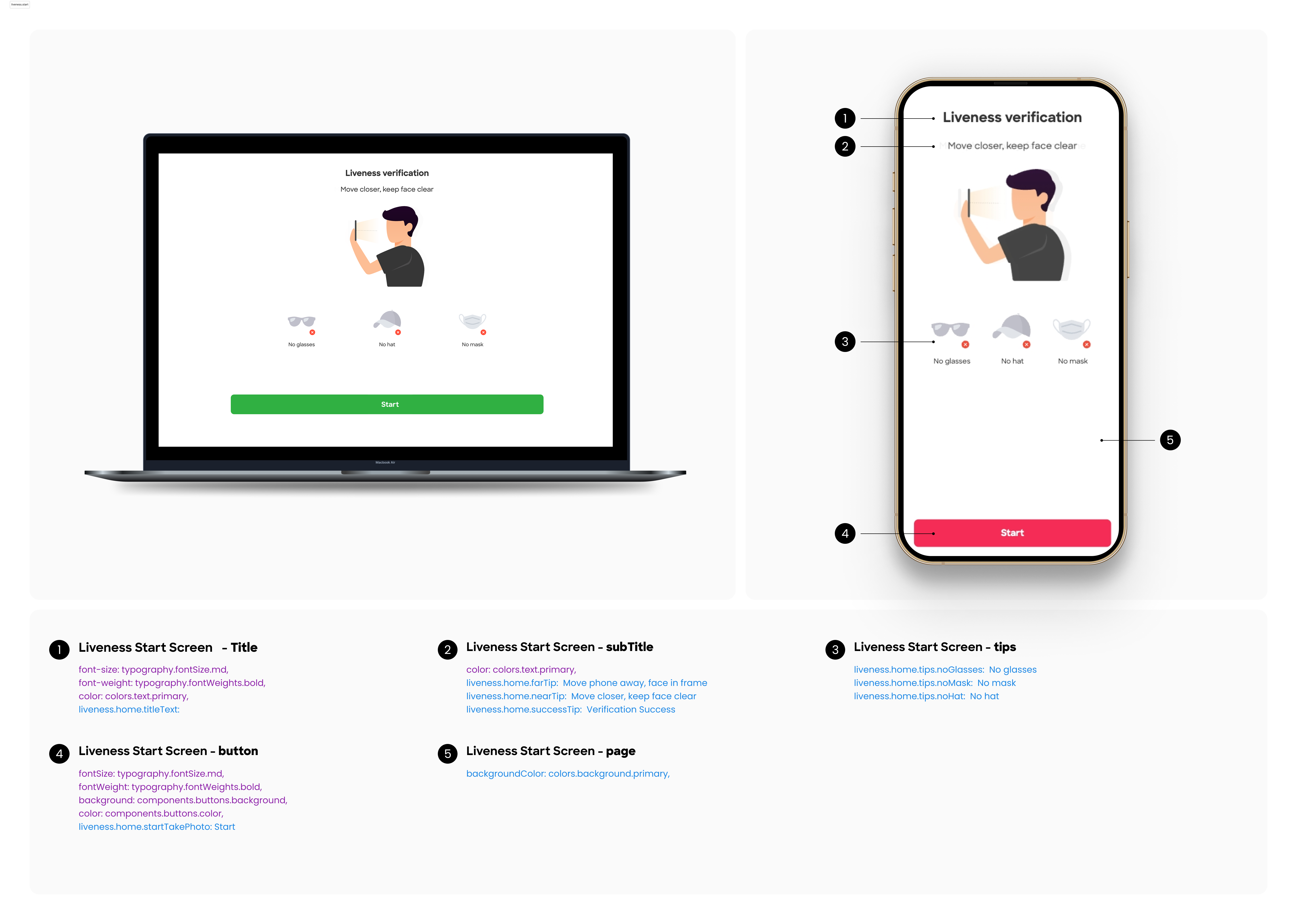
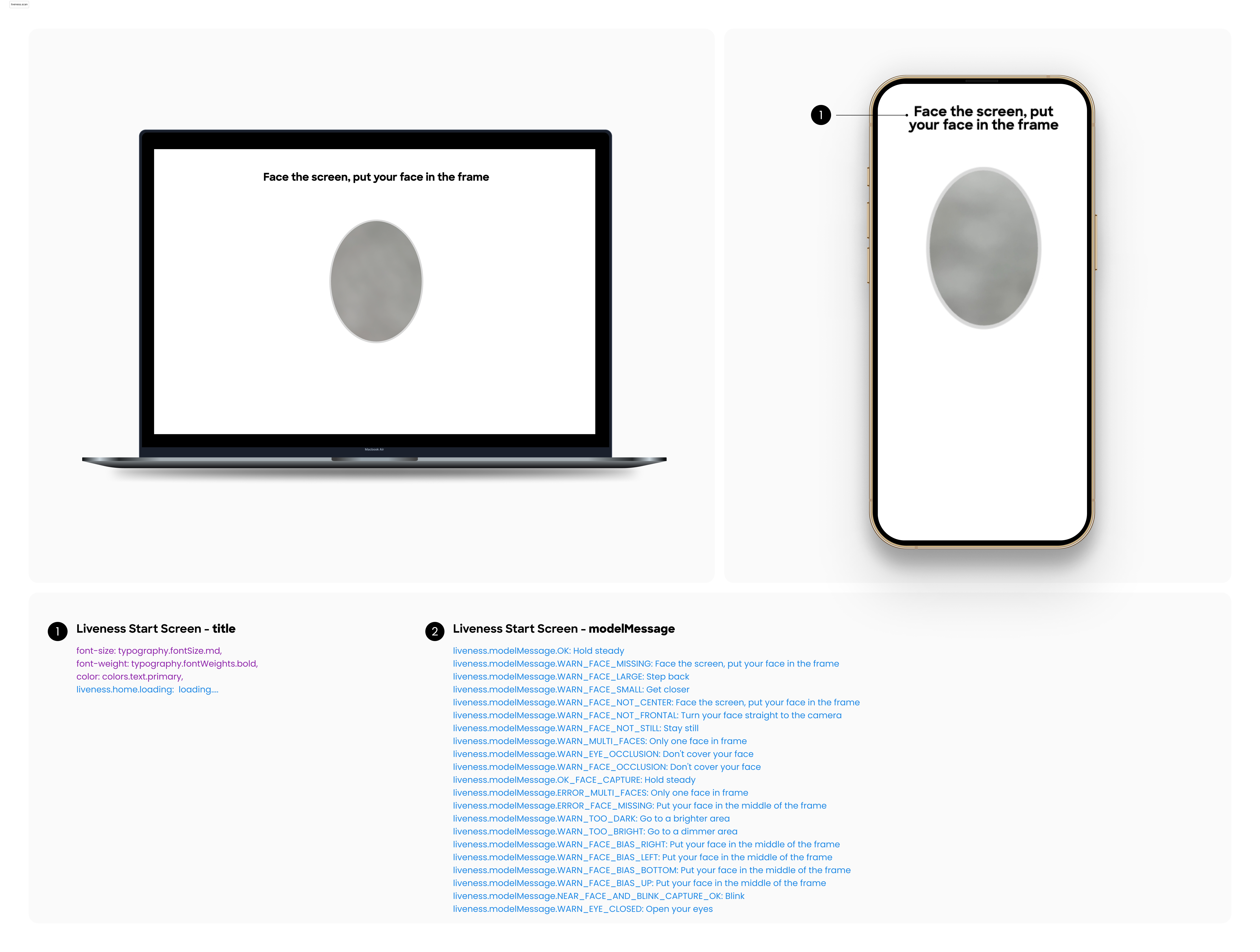
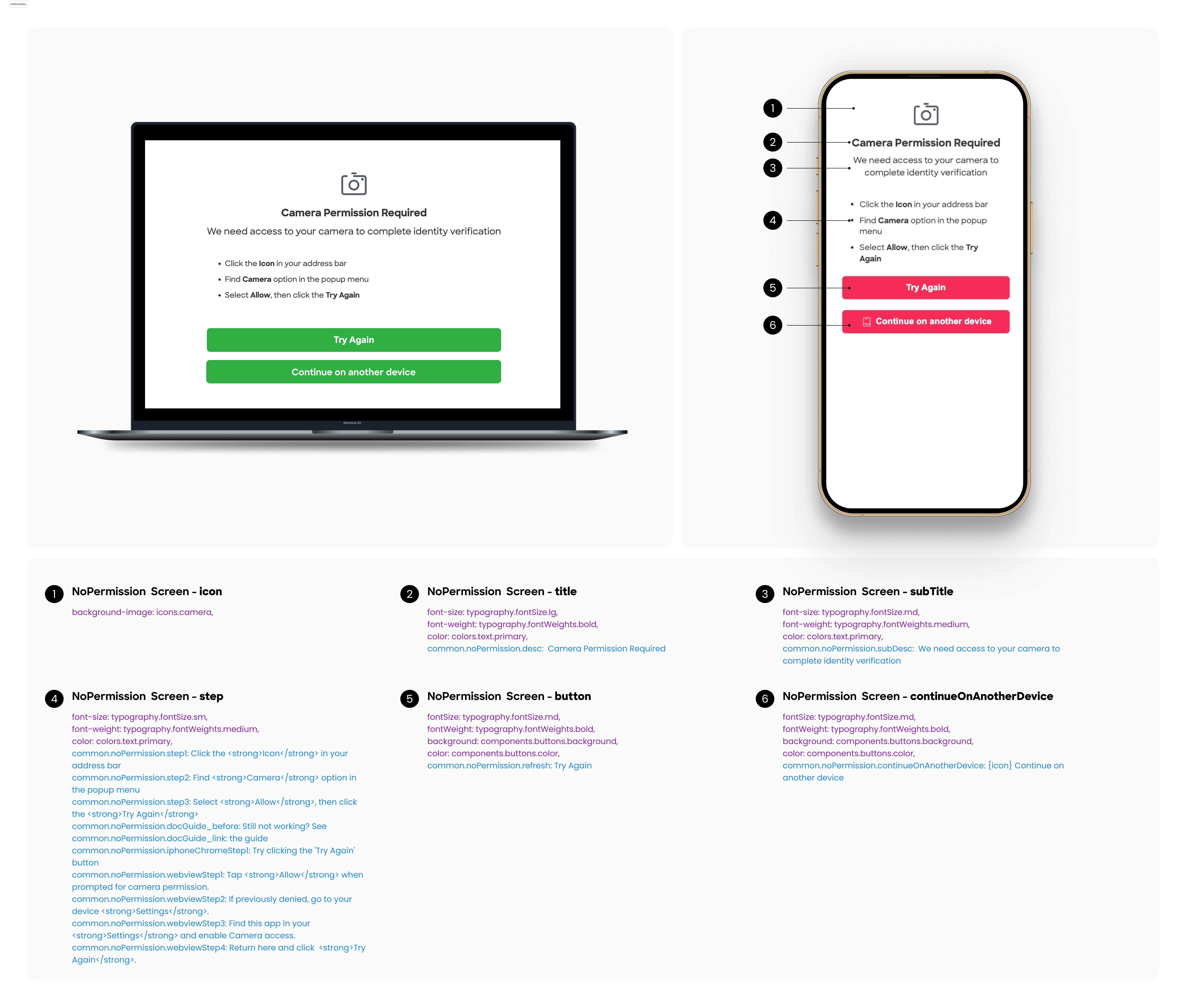
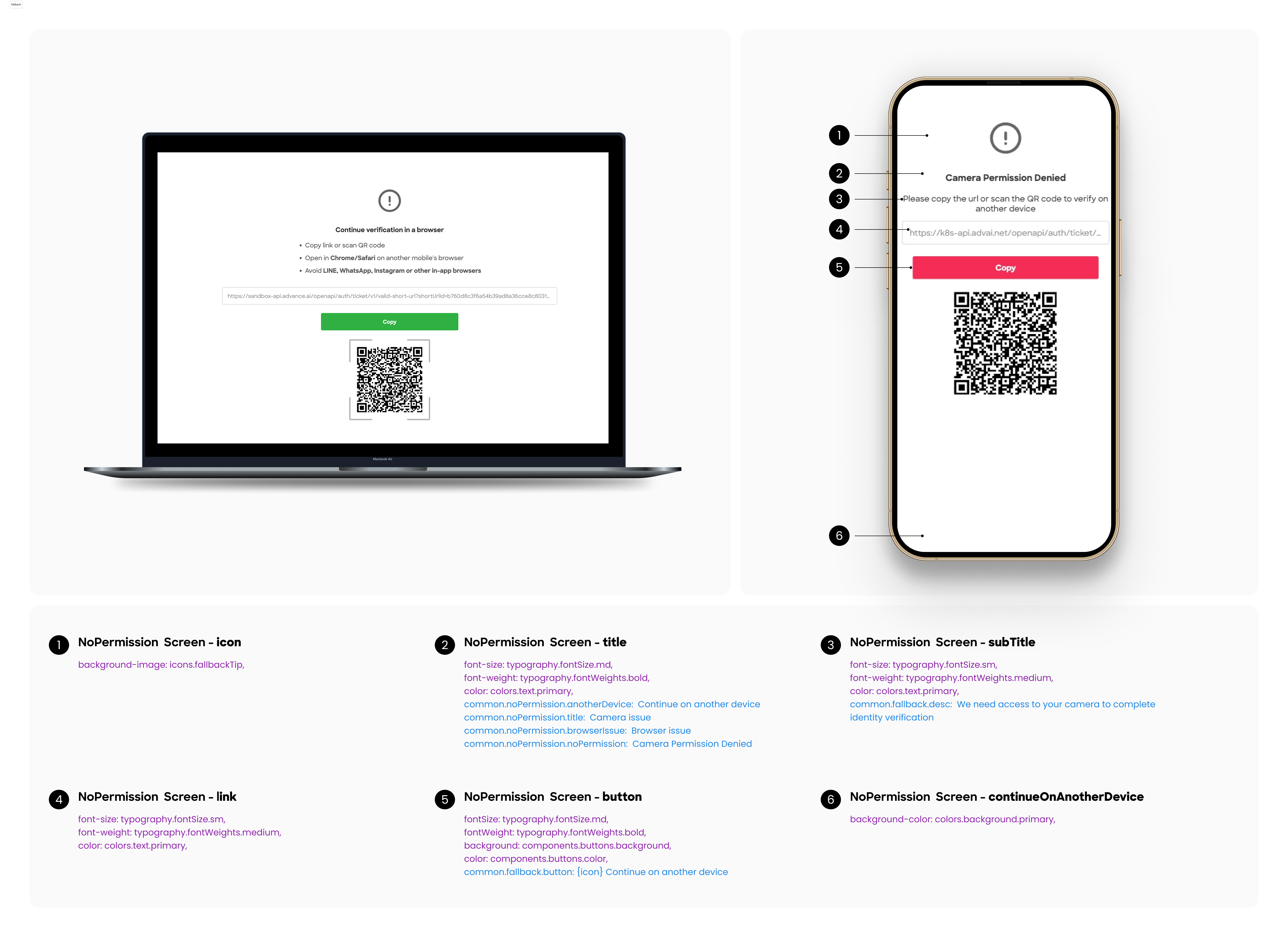
x{ "document": { "start": { "title": "Get your {idType} ready", "btn": "Next", "desc": "Please make sure your ID is clearly visible", "noteSubtitle": "Note:", "note1": "Make sure you are in a location with good lighting for optimal results", "note2": "Position your ID document within the camera frame", "toast": "xxx", "toastMy": "xxx", "agreementDesc": "xx", "agreementDescMy": ."xxx" }, "scan": { "title": "Scan document", "needHelp": "Need Help?", "badFlashlight": "The flashlight cannot be turned on, please turn it on manually", "defaultType": "identification document", "header": "Front Side of Document", "backHeader": "Back Side of Document", "desc": "Please place the document within the frame with the edges aligned", "tipUseCorrectType": "Please use ‘{type}’ for verification!", "tipPoorQuality": "Please make sure the contents of the document are clearly visible.", "tipNoCard": "No document is detected!", "tipPointedCamera": "Please get closer to the camera.", "tipEdgeCross": "Please make sure the document is within the frame with the edges aligned.", "tipGoodCard": "Please hold the phone steadily.", "tipDontMove": "Do not move your documents or phone.", "multipleCards": "Multiple documents detected, use a single one.", "tipObstructed": "Please make sure the contents of the document are not obstructed", "tipSmallCard": "Please get closer to the camera", "loading": "Loading", "uploading": "Uploading", "timeout": "Timeout, please try again", "frontTip": "Please place the document front side within the frame with the edges aligned.", "backTip": "Please place the document back side within the frame with the edges aligned", "retry": "Retry", "collected": "Document collected successfully", "continueToAnotherDeviceDesc": "To ensure the accuracy of the verification results, please click the button below to copy the link or scan the QR code directly to jump to other devices to continue the verification.", "continueToAnotherDeviceBtn": "Use mobile phone verification" }, "manual": { "title": "Take Photo", "frontTip": "Please place the document front side within the frame with the edges aligned.", "backTip": "Please place the document back side within the frame with the edges aligned", "header": "Front Side of Document", "desc": "Please place the document in the center with the edges aligned", "tip": "Try taking photo manually Align document, then press button!", "toast": "Timeout, try taking a photo manually!" }, "result": { "title": "Take Photo", "tip": "Please ensure that all data on your document is visible and readable.", "buttonRetake": "Retake", "buttonConfirm": "Confirm" } }, "liveness": { "home": { "startTakePhoto": "Start", "loadingText": "Loading", "confirm": "OK", "cancel": "Cancel", "retake": "Retake", "usePhoto": "Use Photo", "titleText": "Liveness verification", "titleDescText": "In the following process, please follow the on-screen instructions to move your face for verification.", "farTip": "Move phone away, face in frame", "nearTip": "Move closer, keep face clear", "successTip": "Verification Success", "tips": { "noGlasses": "No glasses", "noMask": "No mask", "noHat": "No hat" }, "loading": "loading...." }, "modelMessage": { "OK": "Hold steady", "WARN_FACE_MISSING": "Face the screen, put your face in the frame", "WARN_FACE_LARGE": "Step back", "WARN_FACE_SMALL": "Get closer", "WARN_FACE_NOT_CENTER": "Face the screen, put your face in the frame", "WARN_FACE_NOT_FRONTAL": "Turn your face straight to the camera", "WARN_FACE_NOT_STILL": "Stay still", "WARN_MULTI_FACES": "Only one face in frame", "WARN_EYE_OCCLUSION": "Don't cover your face", "WARN_FACE_OCCLUSION": "Don't cover your face", "OK_FACE_CAPTURE": "Hold steady", "ERROR_MULTI_FACES": "Only one face in frame", "ERROR_FACE_MISSING": "Put your face in the middle of the frame", "WARN_TOO_DARK": "Go to a brighter area", "WARN_TOO_BRIGHT": "Go to a dimmer area", "WARN_FACE_BIAS_RIGHT": "Put your face in the middle of the frame", "WARN_FACE_BIAS_LEFT": "Put your face in the middle of the frame", "WARN_FACE_BIAS_BOTTOM": "Put your face in the middle of the frame", "WARN_FACE_BIAS_UP": "Put your face in the middle of the frame", "NEAR_FACE_AND_BLINK_CAPTURE_OK": "Blink", "WARN_EYE_CLOSED": "Open your eyes" } }, "common": { "result": { "verificationCompleted": "Verification completed!", "desc": "You will be redirected to the next step!" }, "noPermission": { "desc": "Camera Permission Required", "subDesc": "We need access to your camera to complete identity verification", "step1": "Click the {icon} in your address bar", "step2": "Find <strong>Camera</strong> option in the popup menu", "step3": "Select <strong>Allow</strong>, then <strong>refresh the page</strong>", "refresh": "Refresh", "continueOnAnotherDevice": "{icon} Continue on another device", "stillNoPermission": "Please granted the camera permissions" }, "fallback": { "anotherDevice": "Continue on another device", "title": "Camera issue", "browserIssue": "Browser issue", "noPermission": "Camera Permission Denied", "desc": "Please copy the url or scan the QR code to verify on the mobile phone", "mobileDesc": "Please copy the url or scan the QR code to verify on another device", "button": "Copy", "processingTitle": "Processing...", "processingDesc": "Please wait a second", "complteTitle": "Verification completed", "completeDesc": "Please return to the original browser to proceed", "copyTip": "Copied to clipboard", "copyFail": "Copy Failure", "ocrIssue": "KTP recognition failed" }, "modal": { "success": "Success!", "tips": "Tips", "tryAgain": "Try Again", "recognitionIssue": "Recognition issue", "checkDocuments": "Please check your documents and make sure:", "checkLiveness": "Please make sure:", "checkLivenessSufficient": "1. Sufficient, even lighting from the front;", "checkLivenessCleanCamera": "2. Clean camera lens facing you vertically;", "checkLivenessNeutralFacial": "3. Neutral facial expression.", "checkDocumentsComplete": "1. Complete", "checkDocumentsClear": "2. Clear", "checkDocumentsWithoutExposure": "3. Without exposure", "checkBelow": "Click the button below to try again.", "takePhoto": "Take Photo", "reselectDocument": "Reselect the document", "incorrectIDDetected": "Incorrect ID type detected", "useRequiredID": "Make sure you are using the required type of ID.",
"tooManyAttempts": "Too many attempts", "reachedMaxNumber": "You have reached the maximum number of attempts. Please try again later.", "ok": "OK", "internetConnectionFailure": "Internet connection failure", "checkInternetConnection": "Please check your internet connection and try again.", "noCameraPermission": "No camera permission", "allowAppCamera": "Please allow the application to access your camera, or refresh and try again.", "refresh": "Refresh", "cameraIssue": "Camera issue", "verificationNotSupported": "Verification is not supported on this device.",
"prepareTitle": "Please prepare the documents for verification!", "prepareBtnText": "I'm Ready" }, "loading": { "weakNetwork": "Slow network, please wait" } }}Configuration Example
For example, if you want to modify the title, button text, and description on the start page of the document, you can use the following JSON configuration.
xxxxxxxxxx{ "document": { "start": { "title": "Get your {idType} ready", "btn": "Next", "desc": "Please make sure your ID is clearly visible", } }}3. Feature Configuration
Field Description
| Module | Field Name | Type | Default | Description |
|---|---|---|---|---|
| Global | enableFallback | boolean | TRUE | Allow redirect to fallback page? |
| Document (ID Recognition) | scanTimeout | number | 20 | Document scan timeout (in seconds) |
| Document | showStartPage | boolean | TRUE | Whether to show the start guide page before ID recognition |
| Document | uploadMode | enum | realtime_capture | Determines the image upload method (realtime_capture for direct camera access, gallery for only selecting from device storage). Enum: realtime_capture,gallery |
| Document | galleryIntegration | enum | disabled | Configures access behavior during real-time capture (always show gallery entry, fallback show only on fallback page, disabled hide gallery entry). Enum: always,fallback,disabled |
| Liveness Detection | scanTimeout | number | 30 | galleryLiveness detection timeout (in seconds) |
| Liveness Detection | showStartPage | boolean | TRUE | Whether to show the start guide page before liveness detection |
Configuration Example
xxxxxxxxxx{ "enableFallback": false, "document": { "scanTimeout": 15, "galleryUpload": { "uploadMode": "realtime_capture", "realtimeOptions": { "galleryIntegration": "disabled" }, }, }, "liveness": { "showStartPage": false }}4. Visual Configuration Guide
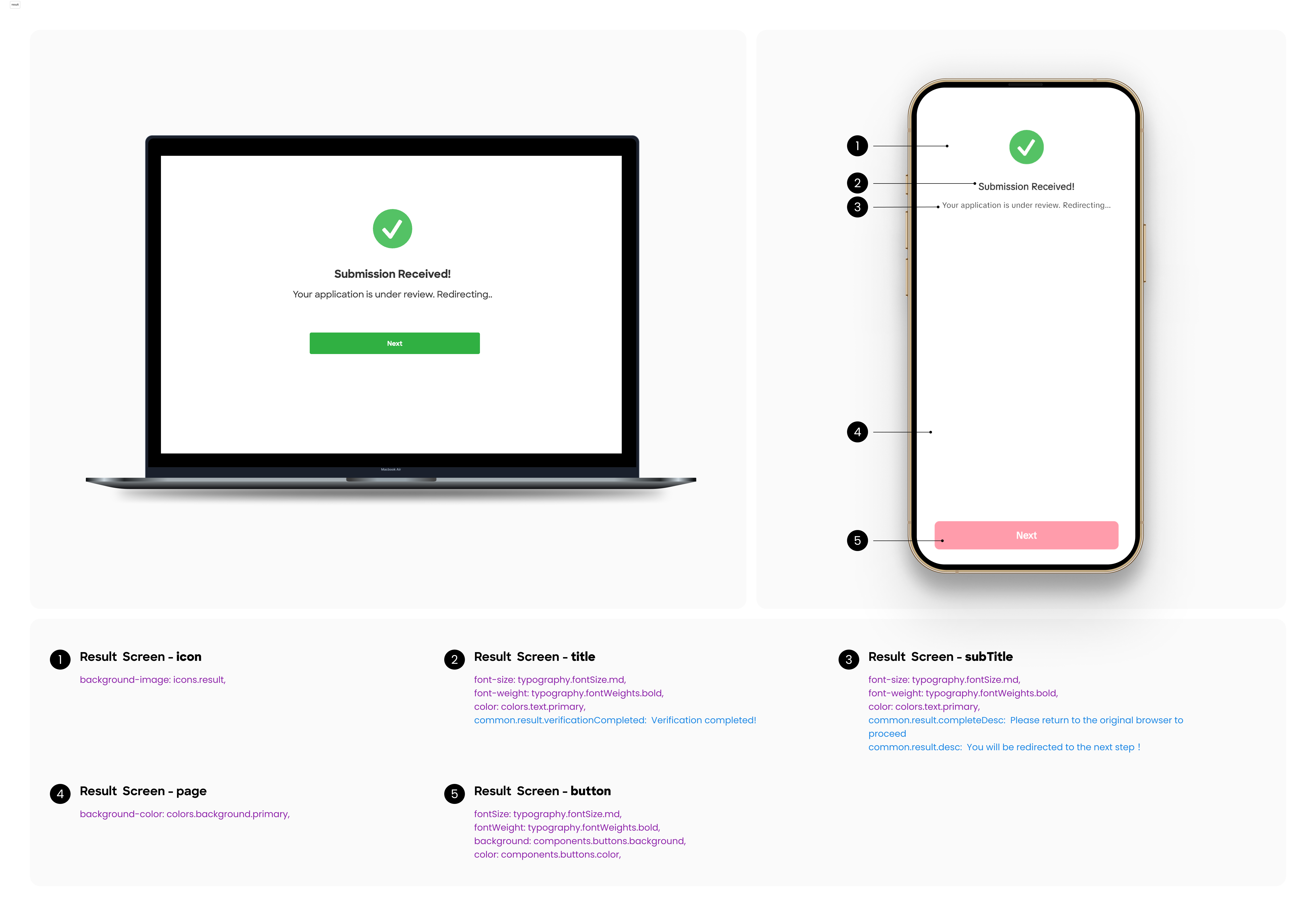
Below is a sample configuration for the detail page.You can follow the visual guide in the image to complete the detailed configuration
Document Start Screen
Document Scan Screen
Document Manual Scan Screen
Liveness Start Screen
Liveness Scan Screen
No Permission Screen
Fallback
Result Screen
Recognition Modal